
In a world where everyone’s a budding podcaster or a karaoke superstar, knowing how to record voice on an iPhone is a game-changer. Whether it’s capturing that perfect idea before it vanishes or belting out your favorite tune in the shower, the iPhone makes it easy and fun. Who wouldn’t want to sound like a pro without the hassle of fancy equipment?
Overview of Voice Recording on iPhone
Recording voice on an iPhone combines simplicity with powerful features. Users can quickly capture thoughts, ideas, or musical performances using built-in apps without needing specialized hardware. Apple’s Voice Memos app makes it easy to record audio with just a few taps.
Starting the recording process happens as follows: Open the Voice Memos app, tap the red record button, and begin speaking or singing. The app automatically saves recordings, allowing users to manage their audio files efficiently. Each recording can be edited, named, or deleted, ensuring clutter-free organization.
Third-party applications also enhance voice recording capabilities. Options like GarageBand and Ferrite provide professional-grade tools for users wanting more advanced features. Each app offers unique editing options and additional functionalities that suit various recording needs.
When it comes to quality, Apple’s devices support high-fidelity audio recording. Users can achieve clear sound by utilizing external microphones for better acoustics. Selecting a quiet environment further enhances recording quality.
iPhone users benefit from flexibility. Recordings can be easily shared via email or social media. Saving audio files to cloud services like iCloud ensures that important recordings are accessible from any device.
The flexibility of voice recording on iPhone makes it an attractive tool for multiple scenarios. Aspiring podcasters find it especially useful for capturing interviews. Similarly, karaoke enthusiasts can record their singing sessions, allowing for enjoyable playback.
Built-in Voice Recording Apps
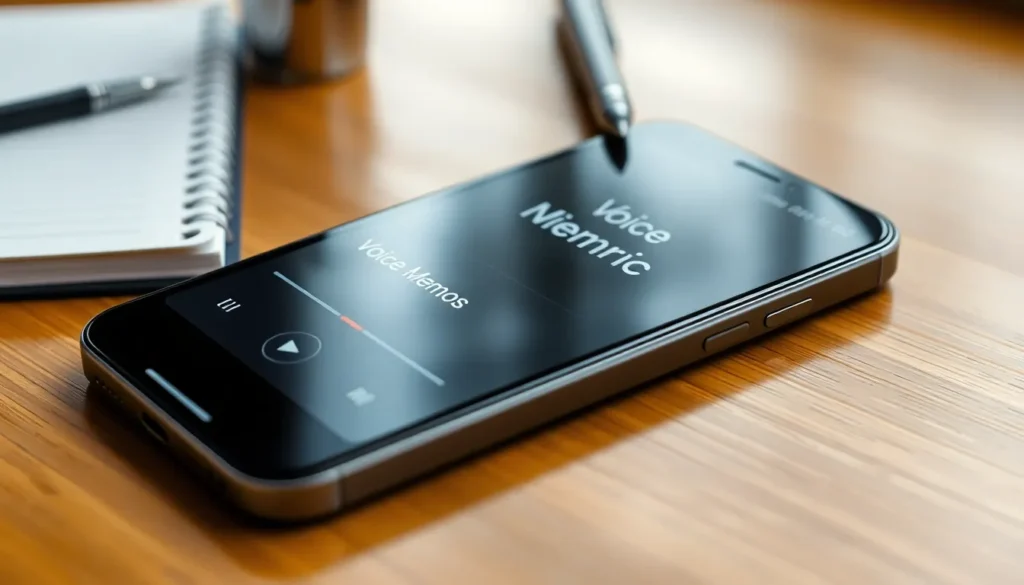
iPhones come equipped with built-in voice recording apps that make capturing audio straightforward and efficient. Users can utilize these tools for various purposes such as brainstorming, recording interviews, or practicing music.
Voice Memos App Features
Voice Memos offers essential features for recording audio. Users can pause and resume recordings, edit audio within the app, and trim unwanted sections. The app saves recordings automatically and organizes them by date, simplifying retrieval. High-quality audio is possible thanks to the iPhone’s advanced microphone technology. Utilizing iCloud also allows for backup, ensuring recordings remain accessible across devices.
How to Use Voice Memos
Using Voice Memos involves a few simple steps. First, users need to open the app on their iPhone. Next, tapping the red record button allows them to start capturing audio immediately. Pausing is an option during the recording process, and users can also stop recording anytime. After saving, they can rename recordings for better organization. Accessing recordings is easy; just scroll through the list to select and share audio via email or social media.
Third-Party Voice Recording Apps
Third-party voice recording apps expand the capabilities of the iPhone, offering specialized features for varied user needs. These applications often provide additional tools that enhance the recording experience.
Recommended Apps for iPhone
GarageBand offers a comprehensive suite for audio recording and editing. It’s user-friendly and suitable for both beginners and professionals. Ferrite provides advanced features tailored for podcasting, including multi-track editing. Voice Record Pro stands out for its versatility, supporting various audio formats and sharing options. Each app brings unique tools that cater to different recording styles and requirements.
Comparison of Features
GarageBand excels in music production with its extensive editing capabilities. Ferrite features an intuitive interface designed for efficient podcast creation. Voice Record Pro offers cloud integration for easy file management. All apps support high-quality audio recording, but they vary in functionalities. Users prioritizing music might find GarageBand most appealing, while those focused on podcasting may prefer Ferrite. Voice Record Pro serves best for general recording needs, providing flexibility across various scenarios.
Tips for Effective Voice Recording
Achieving an outstanding voice recording requires attention to detail. Following specific tips can help enhance the overall quality of recorded audio.
Choosing the Right Environment
Select a quiet space for recording. Background noise can distract from the audio quality and hinder clarity. Soft furnishings like carpets and curtains can absorb sound, reducing echoes. Consider using a small room to minimize noise interference. Close windows and doors to limit outside sounds. If possible, record during quieter times of the day. These strategies dramatically improve the recording experience and lead to better audio capture.
Adjusting Settings for Quality
Access the settings on the chosen recording app to optimize audio quality. For instance, selecting a higher bit rate enhances sound fidelity. Adjusting the input volume ensures balanced levels without distortion. Enable features like noise reduction if available, which can help eliminate background hum. Test recordings before the main session allows users to find the best settings. Fine-tuning these aspects contributes significantly to producing clear and professional-sounding audio recordings.
Troubleshooting Common Issues
Recording audio on an iPhone can occasionally encounter some common issues. Users may experience problems with low audio quality. Checking environment noise levels provides a simple solution, as quieter spaces enhance recording clarity.
App malfunctions can also interfere with recordings. Restarting the Voice Memos app often resolves minor glitches. If the app continues to stop unexpectedly, users should ensure their iPhone’s software is up to date. Outdated software can hinder performance.
Another issue arises with microphone accessibility. Verifying that the microphone isn’t obstructed is crucial, as dirt or cases can impede sound capture. Cleaning the microphone area might restore proper functionality.
Users may also find that recordings fail to save. In such cases, confirming available storage space is vital. If the iPhone runs low on storage, deleting unnecessary files can prevent recording failures.
Furthermore, some recordings might not playback clearly. Adjusting the playback volume settings can provide a quick fix. If playback issues persist, converting the recording file format through a third-party app may resolve compatibility problems.
For users who encounter difficulties with third-party applications, checking app permissions can be the key. It’s essential to ensure the app has access to the microphone. Adjusting these settings can resolve recording issues.
Facing challenges when sharing recordings via email or social media can frustrate users. Ensuring that internet connectivity is stable can address sharing problems. If connectivity remains an issue, try utilizing different sharing methods, like saving to cloud services.
By following these troubleshooting steps, users can overcome common recording challenges and enjoy a seamless audio capturing experience on their iPhones.
Recording voice on an iPhone opens up a world of creative possibilities. With the built-in Voice Memos app and a range of third-party applications, users can easily capture high-quality audio whether for personal use or professional projects.
The combination of user-friendly features and advanced microphone technology ensures that anyone can produce clear and polished recordings. By following simple tips for enhancing audio quality and troubleshooting common issues, users can maximize their recording experience.
Whether it’s for podcasting, singing, or capturing fleeting thoughts, the iPhone proves to be a powerful tool for anyone looking to record their voice effortlessly.